How to Set Up Sales Pop Up in Salepop
Sales Pop Ups display recent purchases, sales activity, and custom messages on your storefront. They help build trust and encourage more customers to buy by showing that other shoppers are actively purchasing from your store.
The Sales Pop Up requires the Salepop app embed. If the page shows App embed is required, click Activate app embed and follow the steps in the app.
How to Set It Up
Step 1: Select a Sales Pop Up Type
Navigate to Sales Pop Up from the app menu.
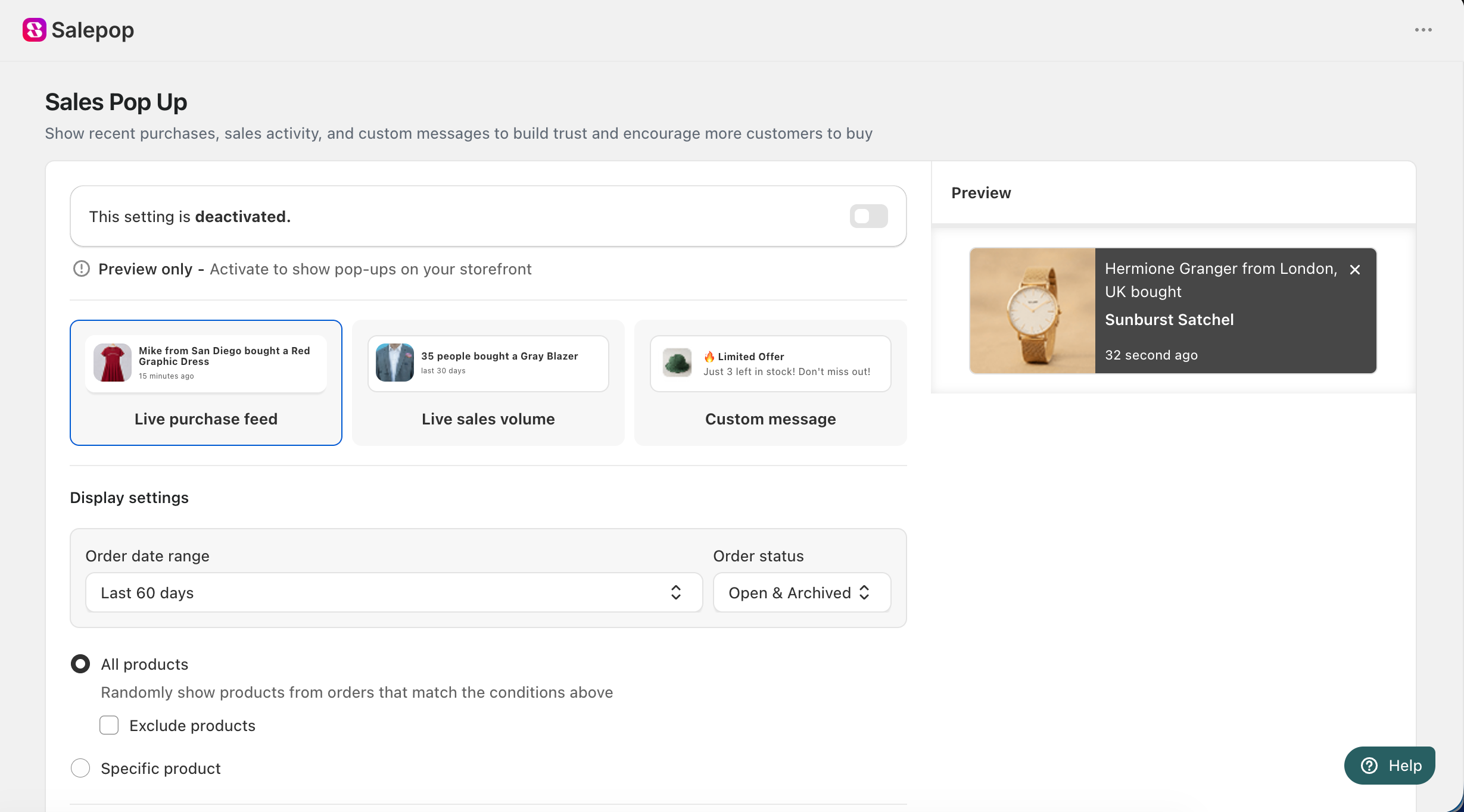
Choose the type of Sales Pop Up you want to display:
- Live purchase feed displays recent customer purchases.
- Live sales volume displays how many customers purchased a product.
- Custom message displays a custom message to your visitors.
The Preview section shows how the selected Sales Pop Up will appear on your storefront.
Step 2: Configure the Display Settings
The settings depend on the Sales Pop Up type you selected.
Live Purchase Feed
In the Display settings section, configure which orders and products can appear in the Sales Pop Up:
- Order date range: choose the order date range used to display recent purchases, for example Last 60 days.
- Order status: choose the order status used to display recent purchases, for example Open & Archived.
- All products: randomly show products from orders that match the conditions above. To prevent specific products from appearing, tick Exclude products under All products.
- Specific product: show a selected product.
Live Sales Volume
In the Display settings section, configure how sales are counted:
- Group sales by: choose how sales are grouped, for example by Product.
- Order date range: select one or more periods: Today, Yesterday, Last 7 days, Last 30 days, or Last 60 days. The period is shown in the pop-up, for example last 30 days.
- Order status: choose Open & Archived, Open, or Archived.
Custom Message
The Custom messages section lists the messages displayed on your storefront. You can add up to 10 messages, and they are displayed randomly.
To add a message, click + Add message, fill in the details, then click Done:
- Title: for example, FREE SHIPPING 📦.
- Message: a short message to highlight your promo or announcement, up to 100 characters.
- Image: accepts .webp, .png, .jpg, and .jpeg files. Recommended size: 500x290 px.
- Link: the page you want the message to link to.
To manage an existing message, click the ⋯ icon next to it.
Step 3: Customize the Popup Message
This step applies to Live purchase feed and Live sales volume.
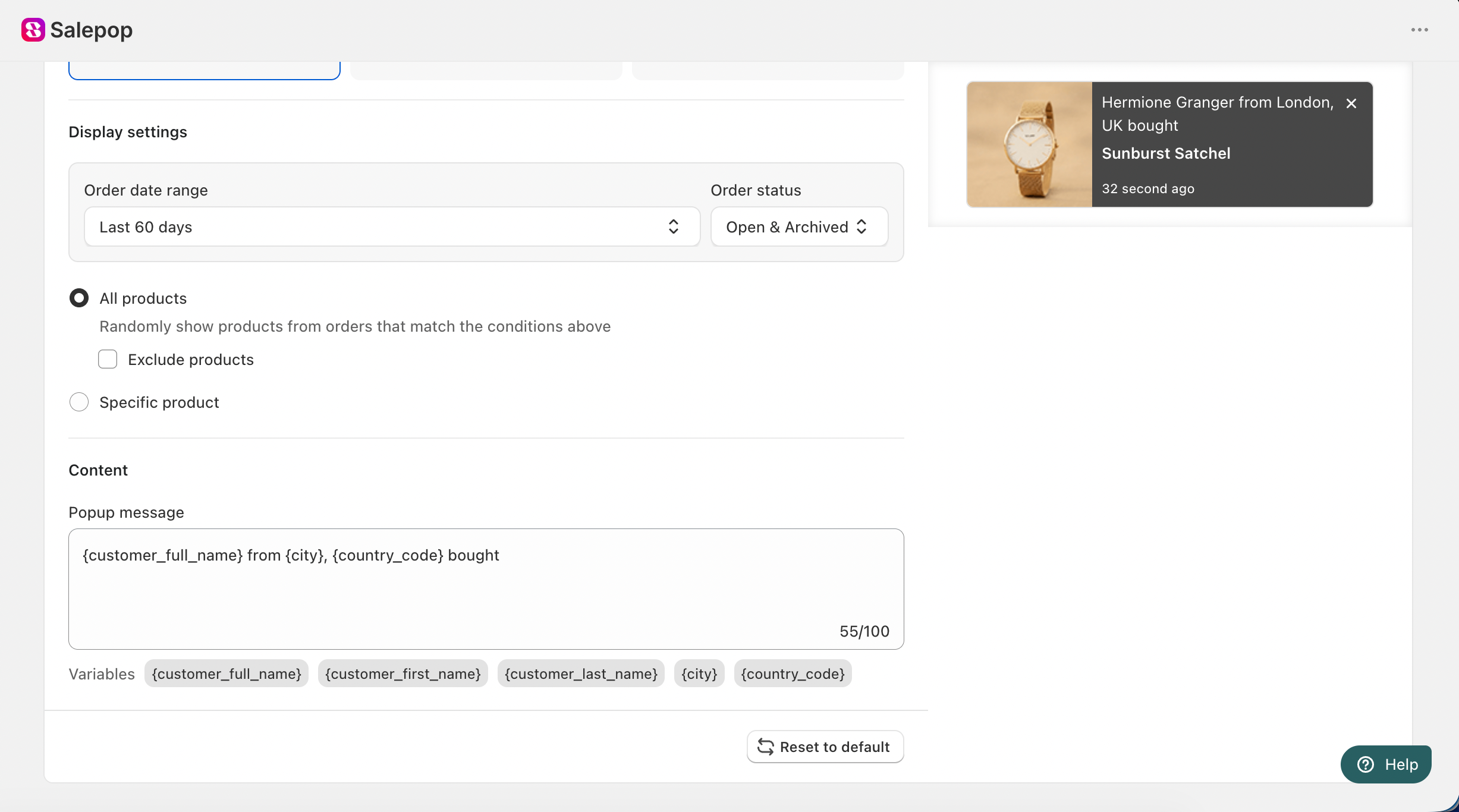
In the Content section, enter the message you want to display in the Popup message field.
You can use the following variables to automatically display order information:
- Live purchase feed:
{customer_full_name},{customer_first_name},{customer_last_name},{city},{country_code} - Live sales volume:
{number_of_people}
Click a variable to add it to the popup message. The product name is shown below your message automatically.
The popup message can contain up to 100 characters. To restore the original message, click Reset to default.
Step 4: Activate and Save the Sales Pop Up
- At the top of the Sales Pop Up page, turn on the toggle so it shows This setting is activated. While the toggle is off, the Sales Pop Up is in Preview only mode and does not appear on your storefront.
- Click Save.
- Visit your storefront and confirm that the Sales Pop Up displays correctly.
Need help?
If you have any questions or need assistance setting up your Sales Pop Up, feel free to contact our support team at [email protected].